
A base64 img is an image file whose binary data has been converted into a plain-text ASCII string using the Base64 encoding scheme. This transformation allows image data to be stored or transmitted in environments that only support text, such as JSON APIs, CSS stylesheets, or HTML documents. Understanding how to encode and decode these strings is essential for developers who need to embed images directly into code without relying on external file URLs.
What is a base64 image? A base64 image is a binary-to-text encoding of an image file (such as PNG, JPEG, or GIF) into a string of ASCII characters. This encoded string can be embedded directly in HTML, CSS, or JavaScript using a data URI, eliminating the need for separate HTTP requests for small images.
A base64 image is not a new image format but rather a representation of an existing image file encoded in Base64. The encoding process takes the raw bytes of an image, whether it’s a PNG, JPEG, GIF, or SVG, and converts them into a sequence of 64 printable characters (A, Z, a, z, 0, 9, +, and /). The result is a long, seemingly random string that can be safely placed inside text-based protocols like HTTP, JSON, or XML.
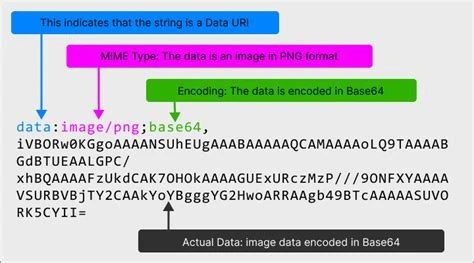
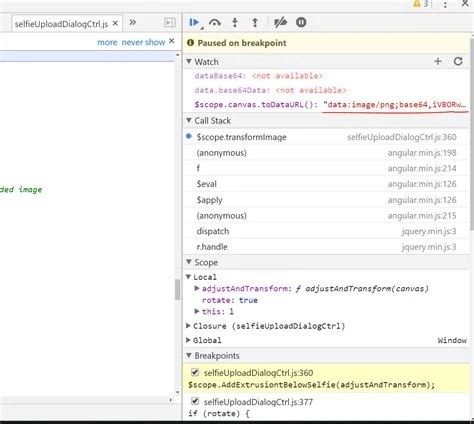
The most common use case for a base64 img is embedding an image directly into an HTML or CSS file using a data URI. For example, instead of referencing an external file with <img src="logo.png">, you can write <img src="data:image/png;base64,iVBORw0KGgo...">. This technique is especially popular for small images like icons, spinners, or logos that would otherwise incur the overhead of an extra HTTP request. It also appears in email bodies, where images must be self-contained, and in CSS background images that should load immediately without a separate network call.
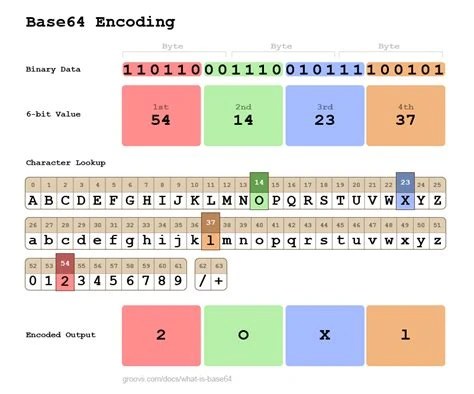
Base64 encoding transforms binary data into a text representation using a 64-character alphabet. For images, the process begins by reading the file’s bytes in groups of three (24 bits). These three bytes are then split into four 6-bit chunks, each of which maps to one of the 64 characters in the Base64 table. If the input data does not divide evenly into three-byte groups, padding characters (=) are added to the end of the encoded string to signal incomplete groups.
For example, a small PNG image might start with the bytes 0x89 0x50 0x4E (the PNG signature). In binary, these three bytes are 10001001 01010000 01001110. Splitting this 24-bit sequence into four 6-bit values gives 100010 (34 → i), 010100 (20 → U), 000100 (4 → E), and 1110 (14 → O). The resulting Base64 fragment is iUEO. The full encoded string for an image can be thousands of characters long, but the same 3-byte-to-4-character rule applies throughout.
Because Base64 encoding expands the original data by approximately 33% (three bytes become four characters, and each character is a byte in UTF-8), a 100 KB image will produce a Base64 string of about 133 KB. This overhead is the primary trade-off when choosing to use a base64 image in HTML or other contexts.
When encoding an image for direct use in a web page, the Base64 string is typically prefixed with a data URI scheme that declares the MIME type and encoding. For instance, a PNG image would have the prefix data:image/png;base64, followed by the encoded string. The MIME type must match the original image format, image/jpeg for JPEG, image/gif for GIF, and image/svg+xml for SVG. The prefix tells the browser how to interpret the following data, and omitting or misstating it can cause the image to fail to render.
The primary advantage of using a base64 image is the reduction in HTTP requests. Every external image in a web page requires a separate request to the server, which introduces latency. By embedding small images directly into HTML or CSS, you eliminate those requests, potentially speeding up page load times. This is particularly beneficial for icons, decorative elements, and small logos that are used repeatedly.
However, there are significant limitations. The ~33% size increase means that larger images become impractical as base64 strings. A 500 KB JPEG encoded in Base64 would be over 660 KB of text, bloating the HTML file and increasing the initial download size. Additionally, base64 images cannot be cached separately by the browser; they are part of the parent document’s cache. If the same image appears on multiple pages, the encoded string must be repeated in each document, negating any caching benefit. For large assets like photographs or full-page backgrounds, a traditional file URL is almost always preferable.
Another limitation is readability and maintainability. A long base64 string embedded in source code makes the file harder to read and edit. Many developers prefer to keep images as external files and rely on HTTP/2 multiplexing or sprite sheets to handle small images efficiently. The decision to use base64 image in HTML should be guided by the image’s size, frequency of use, and caching strategy.

Encoding an image to a base64 string involves reading the file as binary data and converting it using a Base64 encoder. The exact steps vary by programming language, but the general workflow is consistent:
data:image/png;base64,).For example, in a web browser, you can use the FileReader API to read a user-selected image and encode it as a base64 data URL. In Node.js, the fs.readFileSync() method reads the file as a buffer, and Buffer.toString('base64') performs the conversion. Many online tools also provide a simple interface: you upload an image and receive the encoded string, often with the data URI prefix already attached.
When encoding, it’s important to preserve the original file’s MIME type. A PNG file should be encoded with the image/png prefix; a JPEG with image/jpeg. This information is usually obtained from the file extension or the file’s magic bytes. If you are building a tool that accepts arbitrary uploads, you can detect the MIME type by inspecting the first few bytes of the file.
On Unix-like systems, you can encode an image to Base64 directly from the terminal using the base64 command. For instance, base64 -w0 image.png outputs the encoded string without line breaks, which is ideal for embedding. You can then manually prepend the data URI prefix. This approach is quick for one-off conversions.
Decoding a base64 image, often called a base64 decode image operation, reverses the encoding process. The goal is to take a Base64 string (with or without the data URI prefix) and produce the original binary image file that can be saved to disk or rendered in a browser.
The steps are:
data:image/png;base64,), strip it to isolate the pure Base64 payload..png, .jpg), or display it in an <img> tag by reattaching the data URI.In JavaScript, you can decode a Base64 string to binary using atob() (for simple strings) or Uint8Array.from(atob(base64), c => c.charCodeAt(0)) for binary-safe conversion. In Python, the base64.b64decode() function returns bytes that can be written to a file. Most programming languages provide a built-in or library function for Base64 decoding.
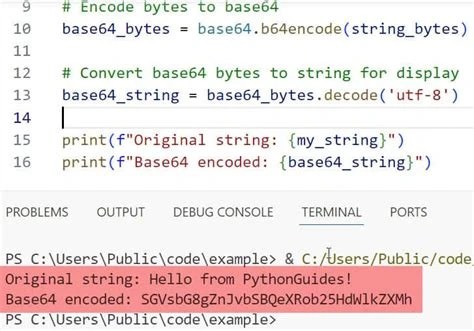
A base64 image decoder is a utility that accepts a Base64 string as input and outputs the corresponding image file. These tools are especially useful when you have an encoded string from an email, API response, or database and need to recover the original image for viewing or editing. Many online decoders also accept the data URI prefix automatically, so you can paste the entire data:image/...;base64,... string without manual stripping.
Common features of such tools include drag-and-drop file input for encoding, automatic format detection (PNG, JPEG, GIF, etc.), and a preview pane that renders the decoded image instantly. Some tools also offer the ability to download the decoded file directly. For developers, a reliable base64 image decoder can speed up debugging when inspecting network payloads or verifying that an encoded string is valid.
If you need to validate whether a given string is correctly formatted Base64 before attempting to decode it, you can use a Base64 Validator, Encoder & Decoder that checks the string’s compliance with the Base64 standard and can both encode and decode data. This is particularly helpful when troubleshooting encoding mismatches.
To use a base64 image in HTML, you place the encoded string (with the data URI prefix) inside the src attribute of an <img> tag. The general syntax is:
<img src="data:image/format;base64,encodedString" alt="description">The format part must match the actual image type. For example:
data:image/png;base64,iVBORw0KGgo... for PNG imagesdata:image/jpeg;base64,/9j/4AAQSkZ... for JPEG imagesdata:image/gif;base64,R0lGODlh... for GIF imagesdata:image/svg+xml;base64,PHN2ZyB4bWxucz0i... for SVG images (the MIME type includes +xml)This technique works in all modern browsers, including Chrome, Firefox, Safari, Edge, and Opera. Internet Explorer 8 and earlier do not support data URIs, but that is rarely a concern today. The length of the encoded string is limited only by browser URL-length constraints (typically around 2, 32 KB for the src attribute when used in img tags, though data URIs are not subject to the same limits as URLs, practical limits are more about file size and memory).
Because the entire image data is included in the HTML, the page becomes self-contained. This is useful for single-file HTML documents, email templates, or offline web applications that cannot rely on external resources.
Choosing between a base64 image and a conventional image file URL involves several trade-offs. The table below summarizes the key differences:
In practice, base64 images are best suited for small, frequently used assets where the extra size is acceptable and the reduction in HTTP requests is beneficial. Examples include inline icons, loading spinners, and small logos. For larger images (over 10, 20 KB), the file size overhead and caching drawbacks usually outweigh the request-saving benefit, making a file URL the better choice.
It's also worth noting that HTTP/2 and HTTP/3 multiplexing reduce the impact of multiple requests, so the argument for base64 images weakens on modern web servers. A thorough performance analysis should consider the specific page load profile and the user’s network conditions.
Despite its simplicity, working with base64 images can lead to several issues if not handled carefully. One frequent problem is string truncation: when copying a long Base64 string from a tool or log, it may be cut off, resulting in an invalid or incomplete data URI. Always verify that the string ends with the correct padding (= or ==) and has no whitespace or line breaks if you are embedding it directly.
Another pitfall is using an incorrect MIME type. For example, prepending data:image/png;base64, to a JPEG file will cause the browser to misinterpret the data, resulting in a broken image icon. The MIME type must match the actual image format. When decoding a base64 image, failing to strip the data URI prefix before passing the string to a decoder will cause an error because the decoder expects pure Base64 characters.
Memory constraints can also be a problem. A very large base64 string (e.g., from a high-resolution photo) consumes significant memory in the browser or server. Attempting to decode such a string in a low-memory environment may cause crashes or slowdowns. For large images, it is better to serve them as file URLs or use streaming techniques. Finally, encoding mismatches can occur when the source binary is not read as raw bytes, for instance, if a text editor opens a binary file and saves it with a UTF-8 BOM, the resulting base64 string will not reproduce the original image correctly.

To solidify the concepts, here are concise code snippets in common languages demonstrating both encoding and decoding of image data.
const fileInput = document.getElementById('fileInput');
fileInput.addEventListener('change', function(event) {
  const file = event.target.files[0];
  const reader = new FileReader();
  reader.onload = function(e) {
    const base64String = e.target.result; // includes data URI prefix
    console.log(base64String);
  };
  reader.readAsDataURL(file);
});function displayBase64Image(base64String) {
const img = document.createElement('img');
img.src = base64String; // must include data URI prefix
document.body.appendChild(img);
}import base64
with open('image.png', 'rb') as f:
encoded = base64.b64encode(f.read()).decode('utf-8')
data_uri = f"data:image/png;base64,{encoded}"
print(data_uri)import base64
base64_str = "data:image/png;base64,iVBORw0KGgo..." # with prefix
# Strip prefix
prefix = "data:image/png;base64,"
pure = base64_str[len(prefix):]
image_bytes = base64.b64decode(pure)
with open('output.png', 'wb') as f:
f.write(image_bytes)These examples assume the string is valid. For production code, you should add error handling and validation. A tool like the Base64 Validator can help verify the integrity of a Base64 string before attempting to decode it.
Embed small icons and sprites directly in HTML or CSS to reduce HTTP requests and improve initial page load.
Include company logos and inline images in HTML emails to ensure consistent rendering across email clients that block external images.
Transmit image data as Base64 strings in JSON or XML responses, avoiding the need for separate file hosting and binary handling.
Audit web pages and decide which small images should be inlined as base64 to optimize critical rendering path and reduce network latency.
Create online converters, image editors, or data URI generators that accept image uploads and output base64 strings for developers.
Package all required image assets as base64 strings inside a single HTML or JavaScript file for offline use without external dependencies.
A data URI is a URL scheme that includes the MIME type and encoding, such as data:image/png;base64,.... A base64 image refers specifically to the encoded image data, which is often used as the payload of a data URI.
Yes, you can use base64 encoded images in CSS by setting the background-image property to a data URI, e.g., background-image: url(data:image/png;base64,...);.
If the string includes a data URI prefix, the MIME type is explicitly stated (e.g., image/png). If not, you can infer it from the file extension of the original image or by inspecting the first few bytes of the decoded binary data.
Base64 is not encryption; it is an encoding scheme. It does not provide any security. If you need to protect image content, use encryption (e.g., AES) before encoding to Base64. For a deeper distinction, see Base64 Is Not Encryption: Encoding vs. Encryption Explained.
There is no hard limit in the HTML specification, but browser memory and URL length constraints can become issues for strings longer than a few megabytes. Most browsers handle data URIs up to several megabytes, but performance degrades. It is generally recommended to limit base64 images to under 50 KB (original file size).
Mastering base64 image encoding and decoding allows developers to make informed decisions about when and how to inline image data. By understanding the mechanics, trade-offs, and common pitfalls, you can effectively use base64 img strings to optimize web performance, simplify data transport, and build self-contained applications. Whether you are encoding a small icon or decoding an image from an API, the principles remain the same: treat binary data carefully, respect MIME types, and always verify the integrity of your strings.
Stay up to date with new tools, blogs, and improvements.
We respect your privacy. No spam, unsubscribe anytime.