
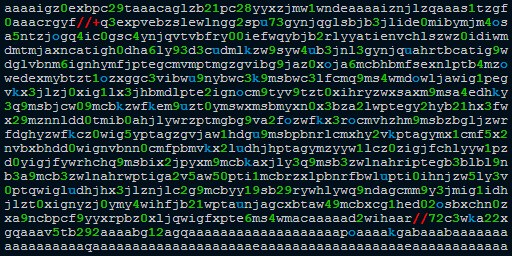
A base64 zip is a ZIP archive that has been converted into plain text using Base64 encoding, usually so it can travel safely through a system that only understands text. Decoding it back into a working ZIP file is a common task for developers dealing with APIs, email attachments, or data pulled out of JSON payloads.
A base64 zip is a ZIP archive represented as a Base64 text string instead of raw binary bytes. To decode it, you reverse the Base64 encoding to recover the original binary data, then save that data with a .zip extension so it can be opened with any standard archive tool.
Base64 encoding is a method for representing binary data using only 64 printable ASCII characters: letters, digits, and a couple of symbols like + and /. It was designed for systems that were built to handle text, not raw bytes. Every three bytes of binary input become four Base64 characters, which is why encoded data always comes out roughly a third larger than the original.
ZIP files, on the other hand, are a binary format used to compress and bundle one or more files into a single archive. They're built for storage efficiency and to keep folder structures intact when files move between systems. A ZIP file's bytes are not text-safe on their own; they contain arbitrary byte sequences that can include characters a text-only channel might mangle or reject.
Put those two together and you get the reason this topic exists: sometimes a ZIP archive needs to pass through something that expects text. That's where Base64 encoding steps in, wrapping the binary ZIP data in a text-safe shell for the trip, with decoding needed on the other end to get the archive back.
The most common reason is that the transport method can't handle raw binary. Email systems, for example, historically assumed message bodies were plain text, so attachments have long been Base64-encoded to survive the trip through mail servers without corruption. The same logic applies to many web APIs: JSON and XML are text formats, and neither has a native way to embed arbitrary binary bytes. If a JSON response needs to include a ZIP archive, that archive gets Base64-encoded first and placed inside a string field.
Other scenarios include configuration files, database columns that only accept text, and command-line tools that pass data as arguments or environment variables. In all of these cases, the underlying concern is the same: binary bytes can contain values that break parsers, get interpreted as control characters, or simply get stripped out. Base64 solves that problem at the cost of extra size. You can check the fundamentals of this encoding scheme in more detail in the Base64 Decode technical reference, and the same principles that apply to encoding images, discussed in the Base64 image encoding guide, carry over directly to ZIP archives.
Base64 zip decode follows the same logic regardless of which programming language or tool you use. The steps are:
.zip extension.Most programming languages have this built in: Python's base64.b64decode(), Java's Base64.getDecoder(), and JavaScript's atob() or Buffer.from(str, 'base64') in Node.js all perform step three directly. For quick, one-off decoding without writing code, a Base64 validator and decoder can confirm the string is well-formed Base64 before you commit to saving it as a file. This matters because a corrupted or truncated Base64 string will decode into garbage bytes that won't open as a valid ZIP, no matter how correctly the rest of your process runs.
It's easy to conflate ZIP and gzip, but they're different formats. ZIP is a container format that can hold multiple files and directories, each individually compressed. Gzip compresses a single stream of data and has no concept of multiple files or folder structure on its own. A very common pattern, especially in web APIs and logging systems, is to take a payload, compress it with gzip, and then Base64-encode the compressed bytes for text-safe transport.
When you're handling this kind of data, the order of operations for base64 and gzip decode matters and it only works one way: decode the Base64 first, then decompress the gzip stream. Trying to gunzip a Base64 string directly will fail, because the string is still text, not the binary gzip stream the decompressor expects. The correct sequence is Base64 string in, binary bytes out, then those bytes fed into a gzip decompressor to get the original uncompressed data.
In practice, a base64 and gzip workflow usually starts with a piece of text or JSON, or it starts with the reverse: you have a Base64 string and don't yet know whether the underlying binary is a gzip stream, a ZIP archive, or something else entirely. Both formats have recognizable byte signatures, called magic numbers, at the start of the file. Gzip streams begin with the bytes 1F 8B, while ZIP archives begin with PK (the bytes 50 4B), a nod to ZIP's original author, Phil Katz. Checking the first couple of bytes after Base64 decoding tells you immediately which decompression tool you need.
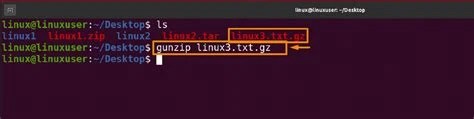
On the command line, a typical pipeline looks like decoding the Base64 with a tool like base64 -d, then piping the output into gunzip or unzip depending on what the magic number reveals. Most programming languages have libraries that support both stages without needing shell commands: Python's gzip module works directly on the bytes produced by base64.b64decode(), and Java's GZIPInputStream can wrap the decoded byte array the same way. The key point across all these tools is that Base64 decoding always happens first, and the decompression step happens second, operating on the resulting binary.
When the underlying binary is a proper ZIP archive rather than a raw gzip stream, the pipeline for base64 and unzip has an extra step compared to gzip, because ZIP files can contain multiple entries and a folder structure. The process is: decode the Base64 string to get the binary ZIP bytes, save those bytes to a file, then run a standard unzip utility against that file to extract its contents.
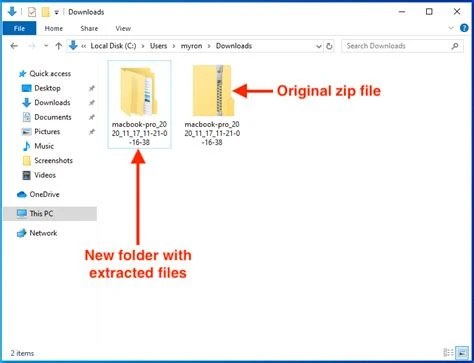
On most systems this means writing the decoded bytes to a .zip file and then running unzip archive.zip, or using a graphical archive tool if you're not on the command line. Programming environments handle this natively too: Python's zipfile module can open a BytesIO object built from the decoded bytes without ever touching disk, and Java's ZipInputStream works the same way against a decoded byte array. This in-memory approach is useful when you're processing many Base64-encoded ZIP archives in a script and don't want to litter the filesystem with temporary files.
A question that comes up often is whether Base64 itself can be compressed, given how much larger it makes data. The honest answer is that it technically can, but it's rarely worth doing. Base64 encoding increases data size by roughly 33% compared to the original binary, because it maps every three bytes into four characters. That expansion happens specifically because Base64 restricts itself to a limited alphabet of readable characters, which spreads out the entropy of the original data and makes it harder for a general-purpose compressor to squeeze back down.
Compressing an already-encoded Base64 string will usually get some size reduction, but never as much as you'd get by compressing the original binary first and then Base64-encoding the compressed result. This is exactly why the gzip-then-Base64 order described earlier is the standard approach: compress first while the data is still in its dense binary form, and only apply Base64 at the very end, right before it needs to travel through a text-only channel. Trying to compress a Base64 string after the fact is working against the encoding rather than with it, so it's generally not worth the added complexity.
Most problems with base64 zip decode come down to a handful of repeatable mistakes:
= characters to a length that's a multiple of four. If padding was stripped somewhere along the way, decoding will fail or produce truncated output. Adding the correct number of = characters back usually resolves it.data:application/zip;base64, attached, which needs to be removed before decoding.If you're unsure whether a string is valid Base64 to begin with, running it through a Base64 validator before attempting a full decode saves time diagnosing the wrong problem. It's also worth remembering, as covered in Base64 Is Not Encryption, that none of this process provides any confidentiality. Base64 is purely a text-safe representation, not a security measure, so an encoded ZIP is just as readable to anyone with a decoder as the original archive.
Decode ZIP archives embedded in JSON API responses or request bodies, where binary data has to be represented as a text field.
Extract ZIP attachments from MIME-encoded email messages, where Base64 has long been the standard transport encoding for binary content.
Handle gzip-compressed, Base64-encoded log payloads pulled from cloud logging services or message queues before analysis.
Verify that files transmitted through an API or stored in a database round-trip correctly after Base64 encoding and decoding.
Move compressed archives between systems that only accept text fields, such as legacy databases or configuration management tools.
Yes. JavaScript's atob() function or the Buffer API in Node.js can decode the Base64 string into binary data, which can then be handled with a ZIP-parsing library like JSZip without needing server-side tools.
This usually means the Base64 string was incomplete, missing padding, or had extra characters like line breaks or a data URI prefix still attached. It can also mean the underlying binary is actually a gzip stream rather than a ZIP archive.
The decoding mechanics are identical since both are just binary formats. The only difference is what you do with the bytes afterward: a ZIP gets opened with an archive tool, while a PDF is opened with a PDF reader, as covered in the Base64 PDF encoding and decoding guide.
After decoding the Base64 to binary, check the first few bytes. Gzip streams start with 1F 8B, while ZIP archives start with PK (50 4B). This check takes a fraction of a second and avoids guesswork.
Yes, the standard alphabet and padding rules are defined in RFC 4648, which also covers URL-safe variants. More detail on the specification itself is available in the Base64 Viewer guide to RFC 4648.
Stay up to date with new tools, blogs, and improvements.
We respect your privacy. No spam, unsubscribe anytime.